Every time you log in, you begin on the Aurigo Engage Home page. The Aurigo Engage application is configured based on the roles assigned to you and the campaigns managed by you.
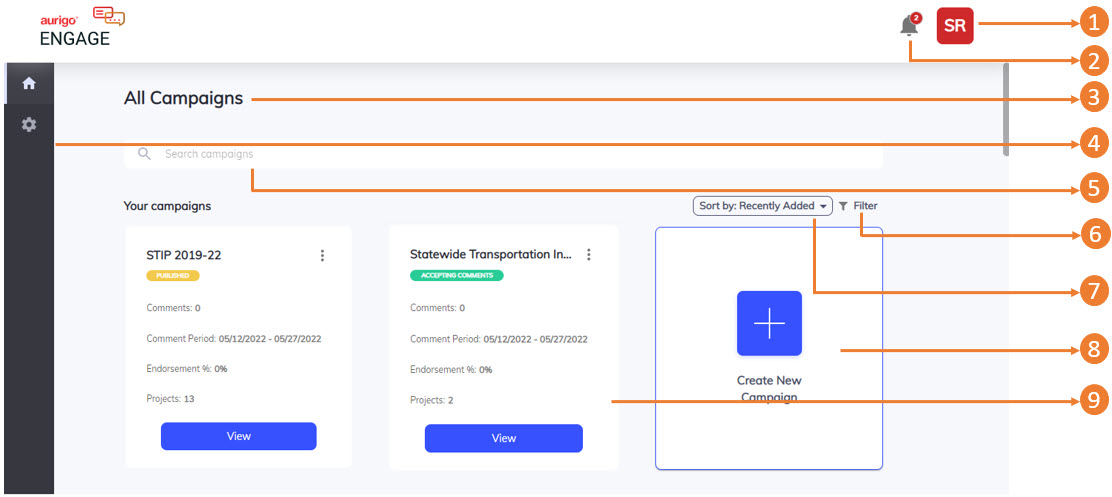
The Aurigo Engage Home page comprises various menu options as illustrated in the following sample display.Figure 1.
The user interface of Aurigo Engage contains various elements that are described as follows:
Number
Item
Description
1
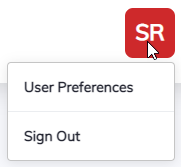
Profile Menu
You can view your profile and log out.
Click your initials to view the options.
2
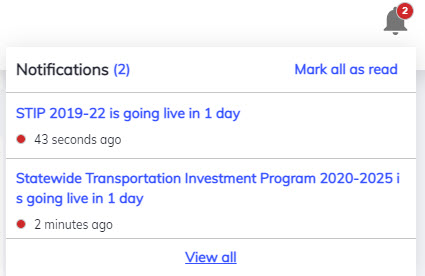
Notifications icon
You can view all notifications along with date and time.
Click the Notifications icon to view all the notifications.
Click View all to view all the notifications in the Notifications page.
3
Page Name
You can view the name of the page you are currently in.
4
Module Menu
You can access the various modules by using the module menu options.
5
Search field
You can use this field to search for a particular campaign.
6
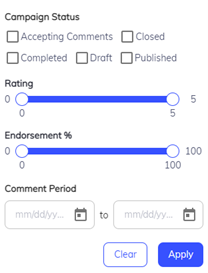
Filter Option
You can filter the campaigns by using this option.
Click Filter to view the filter options.
7
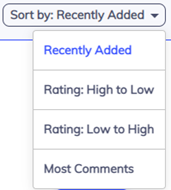
Sort by drop-down list
You can sort the campaigns by using this drop-down list.
Click and select the appropriate option from the drop-down list.
8
Create New Campaign
You can create a new campaign by using this option. For information about creating a campaign, refer to Creating a Campaign.
9
Campaign Tile
You can view the campaign name, status of the campaign, number of comments, commenting period, endorsement percentage, and number of projects.